In this article6
This guide covers how the booking runs from both sides, how it connects to your team’s Google Calendar or Outlook, and how reminders, rescheduling and no-shows are handled — plus what stays a human decision.
How it runs from the customer’s side
From inside the conversation itself, with no app and no sign-up link:
- 1.They ask for an appointment in their own wordsOr press a button in an earlier message — both start the same path.
- 2.They choose from times that are genuinely availableWhat is shown is built from your team’s calendar rather than from a fixed list.
- 3.They confirm and get an immediate confirmation backWith the appointment details exactly as your team will see them.
- 4.They receive a reminder before the appointmentWith a confirm button and a reschedule button, so they never need to ring reception.
Where the booking lands
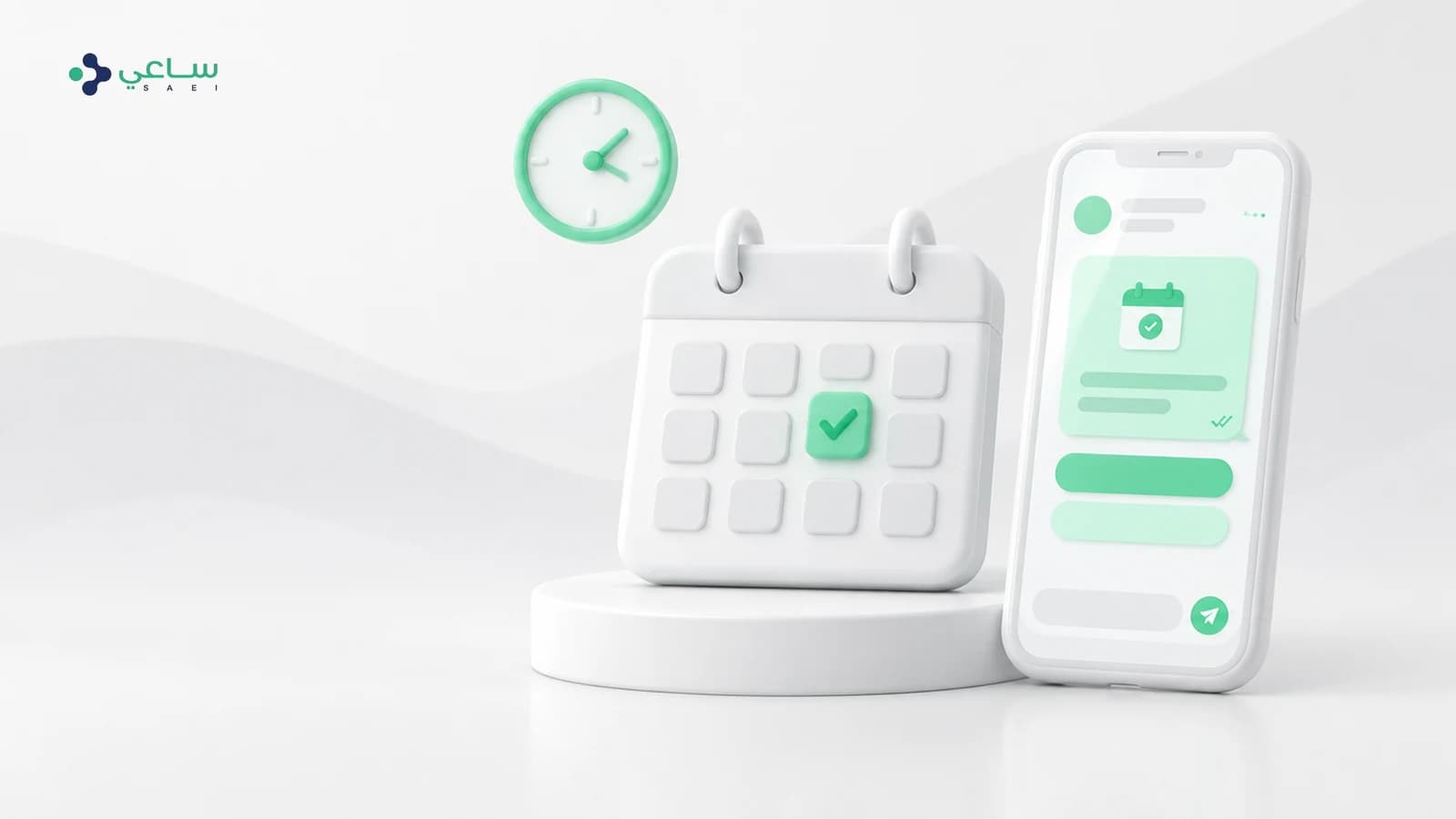
This is what separates a real booking from a form in a conversation. A confirmed appointment is written into your team’s calendar — Google Calendar or Outlook, according to what you connect — so whoever already works from the calendar sees it without opening another console.
It also means the calendar stays the source of truth: what is booked from the conversation appears in it, and what is booked or cancelled in it changes what the next customer is offered.
Reminders, rescheduling and no-shows
Three moments after the booking, each with its own handling:
- A reminder before the appointment, at an interval you set, sent as an approved template because your business is starting the message.
- Rescheduling with one press from inside the reminder itself, freeing the old slot and taking the new one.
- A no-show is recorded and followed up, so an appointment does not pass with nobody noticing.
And the reminder is a utility template rather than a marketing one — a difference that governs both the fee and the approval, explained in the template categories guide.
What stays human
Automated booking serves the ordinary cases, which are most of them. What falls outside — an urgent case, a special appointment, a request no template fits — moves into the shared inbox for a member of staff who can see the whole conversation. That is the design: the machine takes the repetitive, the person takes what deserves a person.
Where this shows up in your sector
The shape is the same and the details differ: clinics tie it to patient reminders and a waiting list on cancellation, real estate ties it to viewing bookings and the agent’s calendar. Both are described in detail on the clinics page and the real-estate page.
Frequently asked questions
Does the customer need an app or an account?
No. Everything happens inside the WhatsApp conversation they already use — no app, no sign-up, and no mandatory external link.
Which calendars do you support?
Google Calendar and Outlook. You connect the calendar once, and it becomes both the source of the times offered and where bookings land.
What if the slot is taken by a phone call at the same moment?
As long as the calendar is connected, the times offered follow it. A booking entering the calendar from any source disappears from what the next customer is shown.
Does the reminder need a template?
Yes, because your business is starting the message. It is a utility template tied to an appointment the customer already has, not a marketing one.
Can the customer cancel?
Yes, from inside the reminder itself, and the slot is freed in the calendar. Anything not settled with a press moves to a member of staff.
Does it work with more than one member of staff or branch?
Yes. Calendars are connected for whoever takes bookings, and the conversation is assigned to a named member from the shared inbox.