In this article10
- Why numbers get banned for bulk sending
- Permission first: who are you allowed to message?
- The marketing template: the shape of a bulk message
- The messaging limit and the quality rating: how much can you send?
- Segment your audience, and schedule the campaign
- After the send: what the report tells you
- Mistakes that sink bulk campaigns
- How to send a bulk campaign in SAEI
- What does bulk messaging cost?
- Frequently asked questions
In this guide: why numbers get banned for bulk sending, what Meta requires before you can message your list safely — permission, the marketing template, the messaging limit and the quality rating — how to segment your audience, schedule the campaign and read its report, and then the steps to send a bulk campaign in SAEI, from the file to the report.
Why numbers get banned for bulk sending
Most of what comes up when you search for “WhatsApp bulk messaging” is software that drives WhatsApp Web, modified copies of the app, or “senders” run from a machine in your office. All of them break WhatsApp’s terms, and WhatsApp detects automated sending from an ordinary account and bans it — sometimes in the middle of the campaign.
The ban is not even the worst of it. These tools send to any number with no templates and no review, so reports pour in from people who have never heard of you; they give you no report you can rely on, and no approved name for the customer to see. And when the number is banned you lose your conversations with existing customers along with it, not just the campaign.
| The official API (through an accredited provider) | Unofficial sending tools | |
|---|---|---|
| Standing under WhatsApp’s terms | Allowed, and designed for this | An outright breach |
| The message you start | A template Meta reviews in advance | Any text, unreviewed |
| Sending volume | A published daily limit that rises with good use | No published limit — until the number is banned |
| Reports | Every message’s state from Meta: sent, delivered, read, failed and why | Estimates from the tool itself |
| Ban risk | Comes from reports and quality, and you can see it coming | Present in every campaign |
What brings a number down is the same in both cases: sending to people who do not want it. The difference is that the official route puts that risk in front of you — the quality rating and the messaging limit — before it becomes a ban. How to choose the provider is in the guide to choosing a WhatsApp provider in Saudi Arabia.
Permission first: who are you allowed to message?
Meta’s Business Messaging Policy requires two things: that you have the customer’s number, and that they explicitly agreed to hear from you on WhatsApp. The number alone is not enough — a list you bought, or numbers collected from a group, is not a list you are entitled to message.
Legitimate ways to collect permission:
- A consent box on your website form or your store’s checkout page, not pre-ticked, that names WhatsApp.
- A QR code or link in the branch or on the invoice that opens a chat with your number, followed by a message confirming the subscription.
- A conversation the customer started themselves, in which you ask whether they would like to receive offers.
- Click-to-WhatsApp ads: the customer is the one who opens the conversation.
Keep evidence of the consent: when it was given and where. When you import a list into SAEI you record its consent source, and if a campaign’s audience includes contacts with no recorded consent, the platform asks you before the campaign is created: send to them once you confirm, or leave them out.
And if you have an old list and do not know how it was collected, do not message it — not even with a message asking people to subscribe, because that too is a message to someone who never agreed. Rebuild it from wherever the customer sees you: the consent box on your website and checkout, a QR code in the branch and on the invoice, and a question in every conversation the customer starts themselves. You will start with a smaller list, but it is the list that will not report you.
The marketing template: the shape of a bulk message
Every bulk message on WhatsApp is a template, because it is a message you start to customers who have not messaged you in the last 24 hours. And every template has a category: offers, campaigns and product launches are “marketing”; order confirmations and reminders tied to an existing transaction are “utility”. The category sets the rules and the cost, and Meta is the one that confirms it at review.
A template is not frozen text. In SAEI a marketing template can carry:
- An image or video header, and body text with variables filled in for each recipient — their name, their city, or any field on the contact.
- Quick-reply buttons, links and a call button.
- A discount code with a button that copies it, and a limited-time offer with Meta’s official countdown.
- A carousel showing several swipeable products in one message, each card with its own image and button.
Before you submit a template for review, read the template categories guide and why templates get rejected.
The messaging limit and the quality rating: how much can you send?
There is no single number that answers “how many messages can I send a day”. Meta gives every business a limit on how many new conversations it may start in 24 hours; most new numbers start at 250, and the limit rises automatically as you message enough unique customers with a good quality rating — and business verification opens the higher tiers.
The quality rating is what guards that limit: it is built from how the recipients themselves respond — blocks, reports and ignored messages. A campaign that draws reports can lower the rating, and a low rating can lower your limit or pause the number.
What SAEI does here, before launch rather than after:
- 1.It counts the campaign against your daily limitThe campaign estimate compares the number of new recipients with your number’s current limit and tells you how many will roll over to the next day — before you press send.
- 2.It reads the audience’s healthOn the review step it shows how cold the audience is, and whether the campaign is a big jump over the largest one you have sent before — the pattern Meta reads as a cold blast.
- 3.It warms up a new numberFrom a new number, warm-up spreads a large campaign across days instead of one burst, which is the fastest known way to destroy a number’s reputation.
- 4.It stops sending when there is dangerNumber health is pulled from Meta on a schedule. At a low quality rating, or while the account is under review, campaigns on that number stop rather than carrying on digging.
The tiers and the conditions for each upgrade are in the messaging limits guide, and what raises or lowers the quality rating is in the quality rating guide.
Segment your audience, and schedule the campaign
One message to ten thousand people produces more reports than ten messages to the right thousand. Segmenting is not an optional refinement; it is the most important thing protecting your number:
- Segment by tag: customers who bought in the last two months, new subscribers who have not bought yet, customers of a particular branch. In SAEI you choose a campaign’s audience by tag, by selecting contacts, or as the whole list.
- Use custom fields: the city, the favourite product, the date of the last visit. Every contact in SAEI carries custom fields — text, number, date or list — and they fill the template’s variables.
- Start with the most engaged: send first to people who have interacted with you recently, then widen. Good engagement in the first batch protects the batches after it.
- Schedule for when it will be read: set the send time and its time zone. A message that lands at 3am is read in the morning — or blocked in the morning.
- Do not repeat on the same person: two marketing campaigns to the same audience on the same day is an open invitation to block.
As for frequency, there is no magic number. The working rule is that every message has a reason that concerns the recipient: an offer on a product they bought before, an appointment coming up, news about a branch in their city. And watch the opt-outs after each campaign; a rise is the most honest sign that you are messaging this audience too often.
After the send: what the report tells you
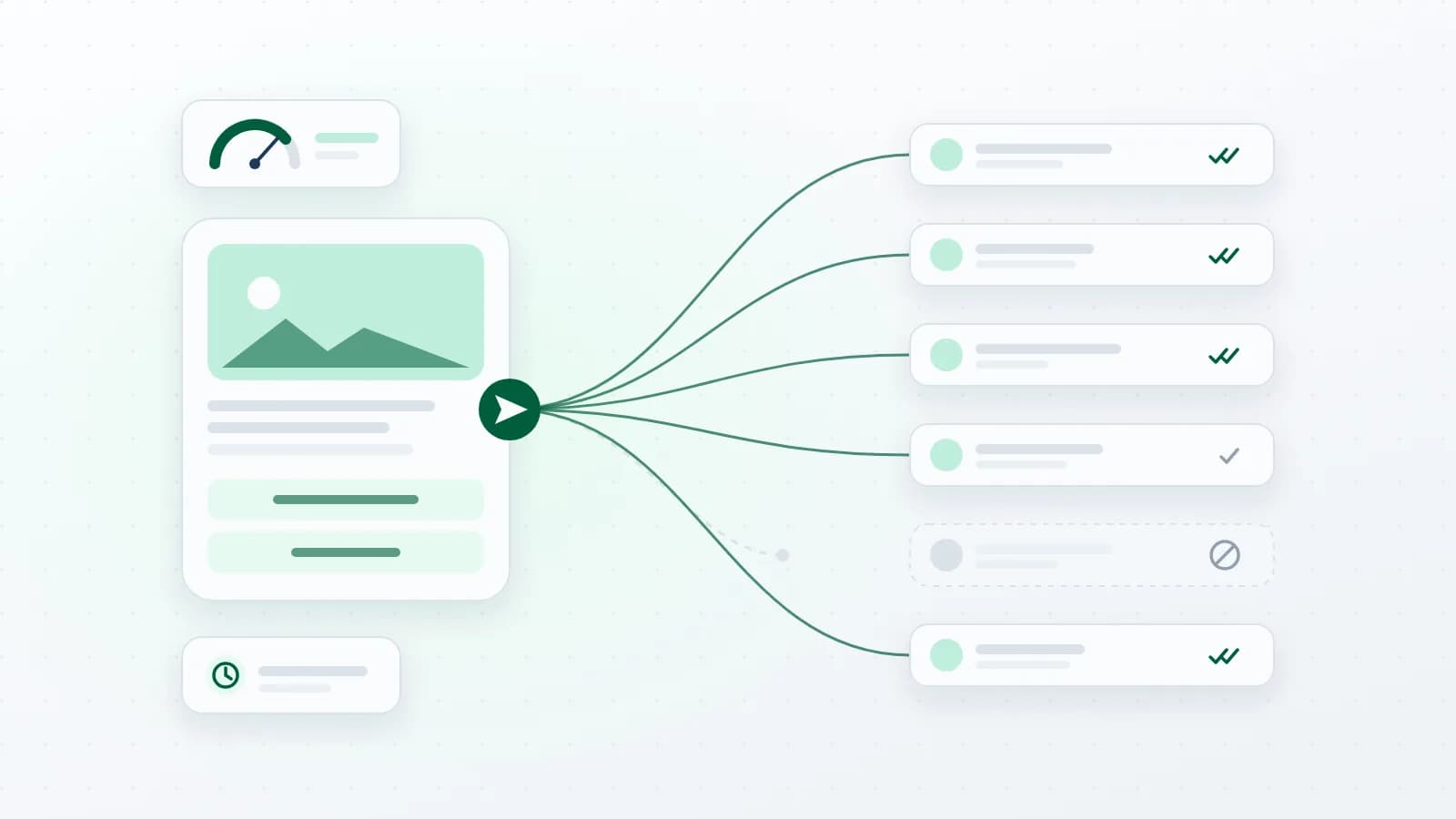
A campaign does not end when you press “send”. Every message’s state arrives from Meta and appears in the campaign report in SAEI:
- How many were sent, delivered, read and failed — with the reason for each failure.
- Button taps: quick replies, links, calls and copy-code, and the unique click-through rate.
- Exporting the report as a file, in full or for one state: who read, or who failed.
- Resending to the recipients whose message failed, inside the same campaign and its report.
- Turning a slice of the report into a tag — those who tapped, those who read, those the message never reached — to build your next campaign on.
Every number, and how to read it, is explained in the campaign reports guide; why a message reaches some customers and not others is in the marketing message delivery guide.
Mistakes that sink bulk campaigns
These are the mistakes that most often turn a good campaign into a number with a low rating, and every one of them is avoided before the send:
- Uploading an old list as it is: numbers you have not messaged in a year belong to people who have forgotten they agreed, and a report from one of them counts like any other.
- A first campaign from a new number to the whole list: a new number has no history, and a jump from zero to thousands is the pattern Meta reads as a cold blast.
- A message with no value in its first line: if the customer cannot tell within two seconds why the message reached them, they are more likely to block than to read.
- Filing an operational message as marketing, or the reverse: trying to slip an offer into a “utility” template ends in a rejection or a re-categorisation, and delays your campaign.
- Hiding the way out: a customer who cannot find a “stop” button uses the one button they can always find — block and report.
- Ignoring the report after the send: a high failure rate or low reads on the first campaign is an early warning; do not wait for the third campaign to hear it.
How to send a bulk campaign in SAEI
- 1.Import your contactsUpload a CSV file, record the list’s consent source, and sort it into tags. Duplicates are detected automatically, and file errors come back row by row.
- 2.Pick an approved templateFrom your templates Meta has approved, or write a new one and submit it for review from inside the platform.
- 3.Choose the audienceBy tag, by picking particular contacts, or the whole list — and map the template’s variables to fields on the contact.
- 4.Review before launchThe campaign estimate and how it compares with your daily limit, the audience’s health, and the consent question if the audience includes anyone with no recorded consent.
- 5.Send now or scheduleSet the time and the time zone. The campaign runs in the background and retries anyone it failed to reach, without sending the message twice to anyone it already reached.
- 6.Follow the report and build on itRead the states and the taps, resend to those who failed, and turn the engaged into a tag for your next campaign. Replies land in the shared inbox for your team to follow up.
Before you upload your first file, read the contacts import guide. And if you want automation to handle the replies that come back after a campaign, start from the guide to WhatsApp automation for businesses.
What does bulk messaging cost?
A campaign’s cost has two parts: Meta’s fee on each template message delivered, which depends on the template’s category and the recipient’s country; and the subscription to the platform you send from. SAEI estimates a campaign’s fees before launch, and you can work them out yourself even earlier:
the WhatsApp message cost calculator, in riyals works out Meta’s fees by category and country, and the pricing page shows the platform’s plans.
Frequently asked questions
Is WhatsApp bulk messaging legal?
Yes — over the official API through an accredited provider, to customers who agreed to receive your messages, using templates Meta reviews. Sending from software that drives WhatsApp Web, or from modified copies of the app, breaks WhatsApp’s terms and puts the number at risk of a ban.
How many messages can I send a day?
As many as your number’s messaging limit allows: the number of new conversations WhatsApp lets you start in 24 hours. Most numbers start at 250, and the limit rises automatically with good use. Conversations the customer starts do not count against it.
Can I send to numbers that are not saved, or that did not opt in?
Whether the number is saved in your phone does not matter on the official API; consent does. Sending to people who did not opt in breaks Meta’s policy, and nothing raises reports and lowers the quality rating faster.
Why did my message not reach some recipients?
The common reasons: the number is not registered on WhatsApp, the recipient opted out or blocked your number, or the messaging limit was reached and the rest rolled over to the next day. The campaign report in SAEI shows the failure reason for each message, and you can resend to the recipients whose message failed.
Can I send images, buttons and coupons in a bulk message?
Yes, within the template: an image or video header, quick-reply buttons and links, a discount code with a copy button, an offer with a countdown, and a product carousel — as far as Meta approves them in the template.
Where do customers’ replies to a campaign go?
To the shared inbox in SAEI, where your team follows them up, or a flow or an AI agent takes over. A customer’s reply opens the 24-hour window, so you can answer with free-form messages.