In this article9
- What a “flow” actually is: a conversation drawn rather than written
- The blocks: the steps you build everything from
- From blank canvas to publish: the actual order
- A complete example: a customer asks “how much?”
- The validator: what blocks publishing, and how to fix it
- The assistant: it builds with you, and fixes what broke
- When a flow is the wrong tool
- What the builder does not do — and what to do instead
- A checklist before publishing
The question that reaches our support in these exact words: “can I build the automatic reply myself, without needing a developer?”. The answer: you build it yourself, because building here is adding a step and joining it with a line. But the part usually neglected is not the building — it is what happens to the customer who writes something you did not account for. This guide deals with both.
What a “flow” actually is: a conversation drawn rather than written
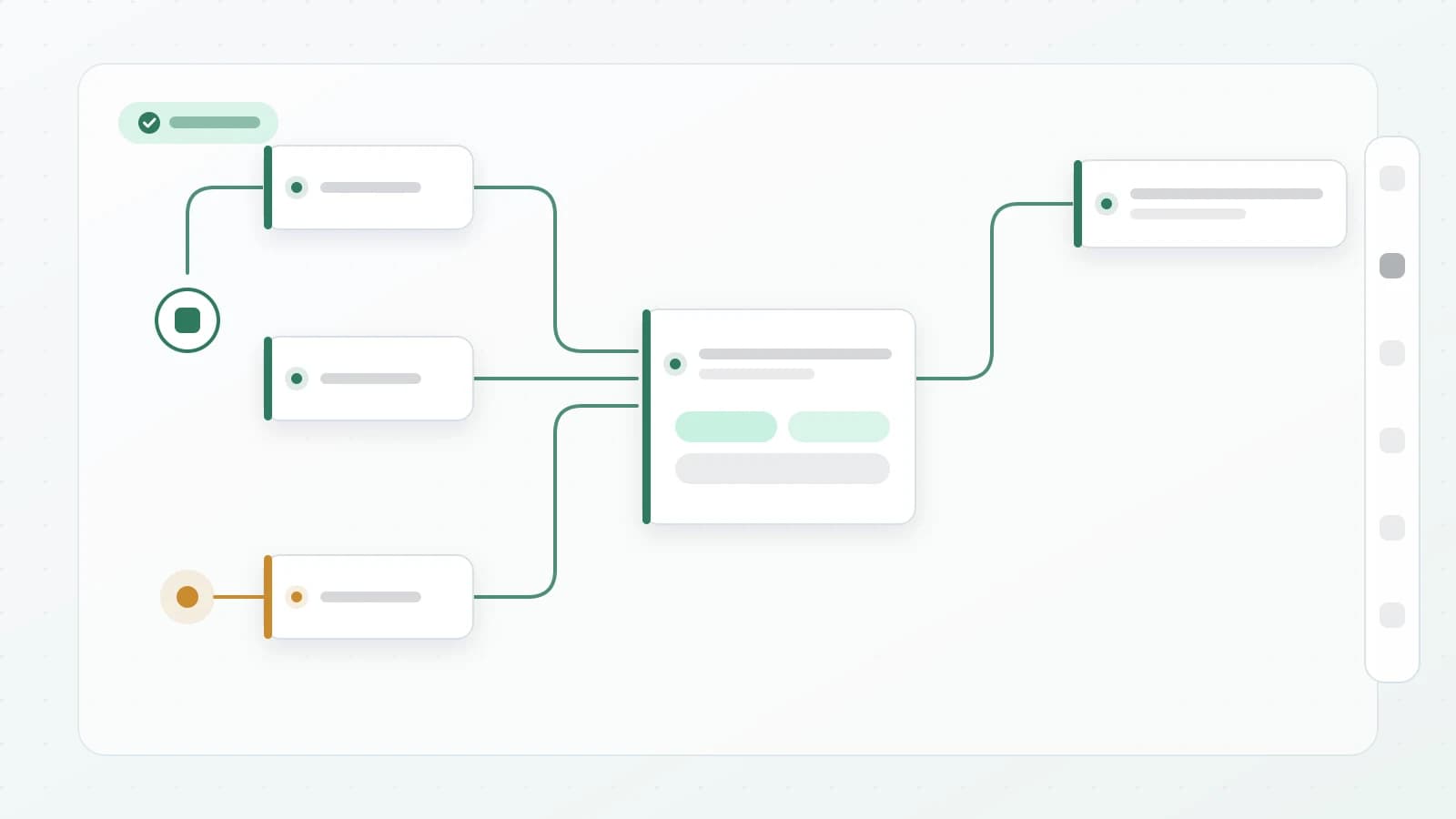
A flow is a diagram. You put cards in it — each card one step: “send this message”, “show these buttons”, “wait an hour”, “hand to an agent” — and join them with lines. The line is the meaning: “after this step, go to that one”. And when a customer’s message arrives, the platform walks the lines exactly as you drew them, with no improvisation.
- Every flow starts with a trigger. One step answering the question “when does this run?” — an incoming message containing a certain word, a new conversation, or a scheduled time. Without a trigger the flow cannot be published at all.
- What lies between the steps is the decision. A buttons card produces a path per button, and a condition card produces “true” and “false” paths. Branching is drawn, not written.
- The memory is called variables. The customer’s answer is stored under a name you choose, then used in any later step — in a message’s text, or in a condition’s comparison.
- A path either ends or is handed over. Either an “end” card or a “hand to an agent” card. A path ending in neither is silence in the customer’s face.
The blocks: the steps you build everything from
The block list is split into groups: triggers, messages, logic, AI, actions (which include a card that calls your external system), contacts, bot control, and the end. The shop and channel groups do not appear at all unless you have a live connection, so the list shows what you have rather than what you might buy. These are the steps you will use in nine flows out of ten — and each has a configuration condition the validator enforces before publishing:
| The step | What it does | What the validator requires |
|---|---|---|
| Incoming message | The commonest trigger: it fires when a message arrives matching a rule you set (the message text contains “price”, the button text equals something, the sender’s number starts with…). | At least one matching rule, with a field, an operator and a value |
| Keyword trigger | The simplest form to start with: a list of words, and whichever appears starts the flow. | At least one word |
| Send a message | You write the text here, or choose a ready message from the message library, or an approved template. | Message text or a choice from the library — and the library must be published |
| Buttons / list | Shows the customer ready options instead of them typing. Every option has its own output from the card. | Text above the options, and at least one option. 3 buttons at most, or 10 list items |
| Ask a question | Sends a question and waits for the customer’s reply, then stores what they wrote in a variable you name. | The question text, and a variable name to store the answer in |
| Condition | Compares a variable with a value, and produces two paths: “true” and “false”. | A variable and a comparison operator — with both branches connected |
| Delay | Pauses the path for a period before the next step: minutes, hours or days. | A duration greater than zero with its unit, up to a maximum of thirty days |
| Set a variable | Writes a value into a variable yourself, rather than waiting for it from the customer. | The variable name |
| AI agent | Hands the conversation to an agent working towards a goal rather than fixed text, then takes it back through one of four routes. | A model, a goal, a system prompt, and at least one exit route connected |
| OTP verification | Sends a verification code through an authentication template and waits for it to be entered, then produces success and failure paths. | An approved authentication template, with both the success and failure paths connected |
| Hand to an agent | Ends the machine’s role and puts the conversation in front of your team in the inbox. It has no output — it is a terminus. | Nothing — you only connect into it |
| Add a tag | Puts a tag on the contact that stays after the conversation ends, so it can segment campaigns later. | Choosing an existing tag |
| End | Closes the path explicitly. | That no line leaves it going forward |
From blank canvas to publish: the actual order
This is the sequence as you actually go through it on screen. The order is deliberate: the validator and the simulator come before publishing rather than after, because discovering something after publishing means a customer discovered it.
Building a flow — the steps on screen
workflow- 1Create a flow and choose the trigger typeFrom the flows page: a name, an optional description, and the trigger type. The name is what you will see in lists later, so make it describe the case rather than a number.
- 2Add the next step from the + on the cardThere is no side panel to drag from. Every card carries a + at its exit point; press it and the block list opens, split into groups — triggers, messages, logic, AI, actions, contacts, bot control — with a search. The difference is not cosmetic: the step is added already connected to what came before, so no orphaned card appears for you to forget.
- 3Connect what is left with linesWhat you did not add from a + you connect by hand: drag from a card’s exit point to another card. Cards with several paths — buttons, condition, the AI agent — have an exit point per path, each with its name shown on it.
- 4Set each card’s settingsPress the card and the settings panel opens: the message text, the buttons, the variable name, the delay duration. Insert a variable into any text from the “insert variable” button rather than typing it by hand — the list shows the variables that are actually defined.
- 5Run the simulator and walk the path as a customerFill in the trigger’s data — the incoming message text, the number and the name — and press “run”. The conversation walks in front of you: you press the buttons and type the replies, and the variables panel shows every variable’s value moment by moment. Nothing goes out to WhatsApp.
- 6Open the “flow problems” panel and empty itThe panel is open while you build and updates as you go. What it finds is sorted into errors, warnings and notes — and errors alone are what block publishing.
- 7PublishPublishing saves a copy in the version history. If a later edit breaks something, you restore the old version — and restoring copies it into your draft for you to review and then publish, so it never goes live by itself.
A complete example: a customer asks “how much?”
The commonest flow in the Saudi market by far, and the one most often built incompletely. The goal: whoever asks gets a number within seconds, and whoever does not find their answer reaches a person — not silence.
The “how much?” flow — from the first message to the handover
example- 1The trigger — “incoming message” with a clear ruleThe field “message text”, the operator “contains”, the value “price”. Add a second rule for “how much” and a third for “what’s the price”, because a Saudi customer writes all three. And the trigger itself can capture the message text into a variable for you to use later.
- 2The options — a “buttons / list” card with three buttons“Which service are you asking the price of?” then three buttons: “cleaning”, “maintenance”, “something else”. Three is WhatsApp’s maximum — if you have more services, make the third “other options”, opening a list of ten items.
- 3The capture — “set a variable” on each button’s outputOn the “cleaning” button’s path put a card writing service = cleaning, and the same on the “maintenance” path. Now the customer’s choice is a value you can compare and build on, rather than a button press that vanishes a moment later.
- 4The tag — “add a tag” on the same pathA tag of “interested — cleaning” stays on the contact after the conversation ends. This is the step that turns an automatic reply into a marketing asset: a month later you have a ready segment, built from real behaviour rather than guesswork.
- 5The routing — a “condition” card with both branches connectedIs service one of the services with a published price? The “true” branch goes to a “send a message” card carrying the package and the price. The “false” branch goes to the handover. Never leave a branch dangling — the validator will block publishing, and it is right to.
- 6The safe exit — “hand to an agent”The “something else” button’s path and the “false” branch both end here. The conversation appears in the team inbox and the automatic reply stops. This card has no output — and that is deliberate: after it, a person takes over.
- 7The close — an “end” card after the price messageWithout it you will see a note that the send step has no next step. The note does not block publishing, but closing the path explicitly makes the diagram say exactly what you mean.
The validator: what blocks publishing, and how to fix it
The “flow problems” panel checks the whole diagram on every edit, and grades what it finds into three levels: Error blocks publishing, aWarning passes but alerts you to what may fail at run time, and aNote blocks nothing. These are what appear most in practice:
| What you see in the panel | Grade | The fix |
|---|---|---|
| “This flow has no trigger” | Error | Add a trigger card — every flow needs at least one starting point |
| The trigger has no outgoing connection | Error | Connect the trigger to the first step — otherwise the flow receives and does nothing |
| “This node needs both its true and false branches connected” | Error | Connect the missing branch — usually “false” — to a handover or an apology message |
| A connection pointing at a card that does not exist | Error | Usually the result of deleting a card and leaving its line. Fixed with one press and no AI usage |
| “An end node cannot be connected forwards” | Error | Delete the line leaving the end card — this is another free automatic fix |
| More than 3 buttons or 10 list items | Error | Reduce the number, or move the options into a list under an “other options” button |
| “The goal field is required” on the AI agent | Error | Write a specific goal for the agent — and the model and the system prompt too, all three are mandatory |
| “No incoming connection to this node” | Warning | An orphaned card that will never run: connect it or delete it |
| One of the AI agent’s routes is unconnected | Warning | The agent has four exits (goal met, goal not met, handed over, failed). Give each one a destination |
| “This step may fail outside the 24-hour window” | Warning | Set a fallback template on the step, to be sent when the window is closed — the warning then turns into a reassuring note |
| “This step has no next step” | Note | Add an end card if the path has genuinely finished |
The detail of approved templates — why they are rejected and how to be approved first time — is in the template approval guide.
The assistant: it builds with you, and fixes what broke
Inside the builder there is a panel called the “flow assistant”, and it does two things and no third: it responds to a request you write in plain language on the flow open in front of you, andit fixes the problems the validator finds. It is a tool working on an existing diagram, not a machine producing a finished flow from one sentence.
The working cycle with the assistant
loop- 1You write the request in plain language“Add a delay after the welcome message”, or “explain what this flow does”. The panel shows how many steps are available in your workspace and which channels they cover, so you know the limits of what you can ask for.
- 2The assistant proposes changes, not proseThe proposal is a set of specific operations on the diagram: add a step, delete a step, create a connection, remove a connection, edit settings. They are shown to you summarised — “add two steps, create two connections” — not as prose for you to interpret.
- 3Nothing is applied before you press “apply”“Dismiss” leaves the canvas exactly as it was. And after applying, undo stays available in one step, so the risk in experimenting is practically zero.
- 4“Fix with AI” starts from the diagnosisFrom the problems panel you choose one problem or “fix all”. The assistant receives the diagnosis ready rather than inferring it, which is why this is its most accurate and least costly use.
- 5Some fixes use no AI at allMechanical problems — a connection to a deleted card, a line leaving an end card — are fixed arithmetically with no model call, and carry a “no AI” mark.
- 6The result is validated before it reaches the canvasAny change the assistant proposes passes through the validator first. A proposal that would have introduced a new problem is refused and you are told, rather than it landing on your diagram and breaking it.
- It cannot invent a step type. The list of types allowed to it is built from your own workspace, so it never proposes a step for a channel you have not connected.
- It tells you when it cannot. “This step sends an approved template and there is no template in your workspace” — an explicit reason and a clear action, not a silent failure.
- It has a monthly allowance. If it runs out, it says so plainly. The mechanical fixes stay available because they use none of it.
- It does not replace review. It speeds up building and corrects what is broken; the decision “is this the right path for my customer?” stays yours.
When a flow is the wrong tool
A flow assumes you know the questions in advance. That is true of “how much?”, “where is my order?” and “what are your hours?”, and entirely false when a customer writes a whole paragraph about their situation and expects a reply specific to it. At that point more buttons do not fix the problem; another tool does.
A flow or an AI agent?
decisionBuild a flow
- Prices, appointments, order status, booking confirmation
- The same reply word for word every time, reviewable and auditable
- No AI model usage — the cost is known in advance
Use an AI agent
- Consultations, complaints, technical questions in countless wordings
- You give it a goal, a system prompt and knowledge sources instead of fixed text
- It exits by one of four routes, one of which is a handover to an agent
What each one offers
comparison| The flow | The AI agent | |
|---|---|---|
| A literal, fixed reply every timeThe agent composes its own wording, so the text changes | Yes | Partly |
| Handling a wording you did not anticipate | No | Yes |
| A visible path, reviewable step by stepYou see the agent’s result and its exit route, not every step inside it | Yes | Partly |
| A fixed cost with no model usage | Yes | No |
| Storing the customer’s answers in variables | Yes | Yes |
| Handing to an agent when needed | Yes | Yes |
What the builder does not do — and what to do instead
Being clear here saves you a week of trying. These are real limits, and each has a known alternative route:
- The ready integrations inside the builder are Salla and Zid. A shop on either gives you ready triggers — a new order, a change of order status, an abandoned basket — and the order and customer data is available as variables inside messages directly.
- There is no ready integration with CRMs. If your data lives in another system, the route to it is through the platform’s API, or through our team to arrange the connection — not through a card you drag onto the canvas.
- A flow does not exceed WhatsApp’s limits. Three buttons, ten list items, and a twenty-four-hour window for free-form messages. The validator applies them to you before sending, rather than WhatsApp discovering them afterwards.
- A flow does not fix a bad message. If your wording is long or vague, automation only delivers it faster. Read every message aloud before publishing — a sentence that stumbles when read stumbles for the customer.
And if you are bringing these conversations in from an ad, start from the click-to-WhatsApp ads guide — the first reply there is what opens the 24-hour window in the first place, and the flow is what makes it instant.
A checklist before publishing
- Every buttons card and every condition card: every output has a destination, including “false” and “something else”.
- The diagram contains at least one “hand to an agent” card, and the unexpected paths reach it.
- The variable names are valid, and every variable you use in text was defined by an earlier step.
- You ran the simulator twice: once on the correct path and once on a deliberately wrong one.
- The problems panel is free of errors, and you read the warnings and made a decision on each.
- Any free-form send step that might run outside the 24-hour window has a fallback template.
- Tags are placed on the paths you will need in a later campaign.
Do I need a developer to build a flow?
No. Steps are added from the block list and joined with a line, and every step has an ordinary settings form — the message text, the buttons, the duration. The only thing resembling programming is the name of the variable you store the customer’s answer in: it must start with a Latin letter or an underscore and contain only letters, digits and underscores, or the validator rejects it by name. Everything else is choosing from a list or typing into a field.
How many buttons can I put in one step?
Three quick-reply buttons at most, or ten items if you use the list format instead of buttons. That is a limit from WhatsApp itself rather than the platform, which is why the validator treats it as an error that blocks publishing rather than a warning: a message exceeding it is not accepted by WhatsApp at send time. If you have more options, make the third button “other options”, opening a list step beneath it.
What happens if a customer replies with something I did not expect?
What you connected happens, and nothing else. A buttons step routes each button to its own output, and a condition step has two branches — “true” and “false” — and the validator blocks publishing if either is left unconnected. A reply matching nothing stops at that point and reaches nobody. The practical rule: every “unexpected” path must end in a handover step, not in a void.
Does the assistant build the whole flow for me from one sentence?
No, and that is not what it does. The assistant works on the flow open in front of you: it reads your request and proposes a set of changes to it — adding steps, connecting them, editing their settings, or deleting them — and shows them to you before anything else. Nothing is applied until you press “apply”, “dismiss” leaves the canvas as it is, and undo reverses the whole change in one step. It also cannot use a step type that does not actually exist in your workspace.
Can I try the flow without sending a message to a real number?
Yes — the simulator panel inside the builder. You fill in the trigger’s data (the incoming message text, the sender’s number, the contact’s name) and press “run”, and the conversation walks in front of you step by step: you press the buttons and type the replies, and a side panel shows every variable and its value at that moment. Nothing goes out to WhatsApp, and delay steps are skipped rather than waited out. And the simulator refuses to run a flow containing errors, showing them to you first.
Can the flow message the customer days after their last reply?
Not with a free-form message. Twenty-four hours after the customer’s last message the messaging window closes, and after that only a pre-approved template gets through — at 0.04 SAR for a utility message in the Saudi market, while a reply inside the window is free. This is why the validator puts a warning on any free-form send step that might run outside the window, and the warning clears when you choose a fallback template on that same step.